Test sections
Test sections organise items within a test. A test may contain one or more sections, each with its own optional reference materials and stationery tools (such as calculators or rulers).
Section types
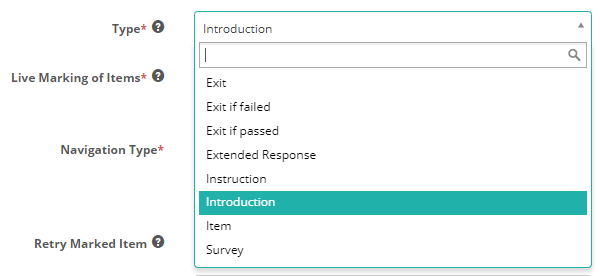
Introduction and Instruction are both lead-in sections that present directions and guidance before the main test. They sit at the start of the test and are neither timed nor graded. The difference is what each one can do:
- Introduction — the fully-featured lead-in. Use it when the lead-in needs to do more than inform: it can hold practice items so test-takers can familiarise themselves with item formats, it can be made mandatory with Cannot Skip so test-takers can't jump past it, and it can show item feedback on those practice items.
- Instruction — a simpler directions or guidance screen. Use it when you just need to present information up front. Unlike Introduction, it can't be made mandatory and doesn't offer item feedback.
If you're unsure which to pick, choose Introduction — it does everything Instruction does, plus the mandatory and feedback options.

Item — holds the items that make up the test itself. Add more than one Item section when you want to group those items — for example, to keep different item types in separate sections.
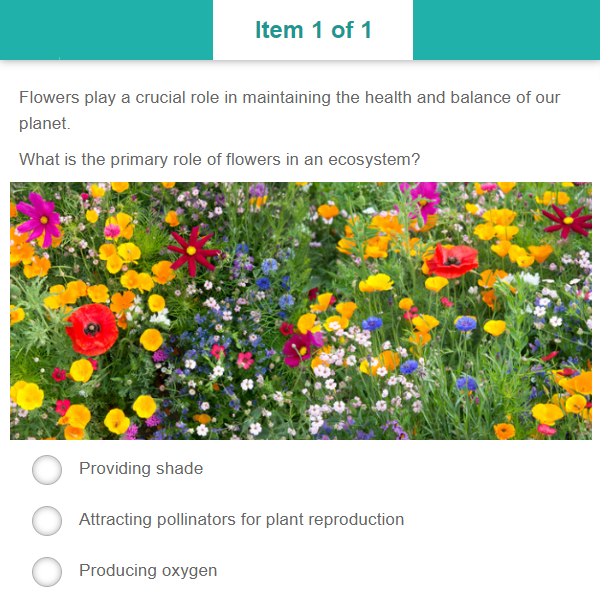
Survey — collects respondent data, opinions, and feedback on specific topics. Commonly placed at the beginning or end of an assessment.
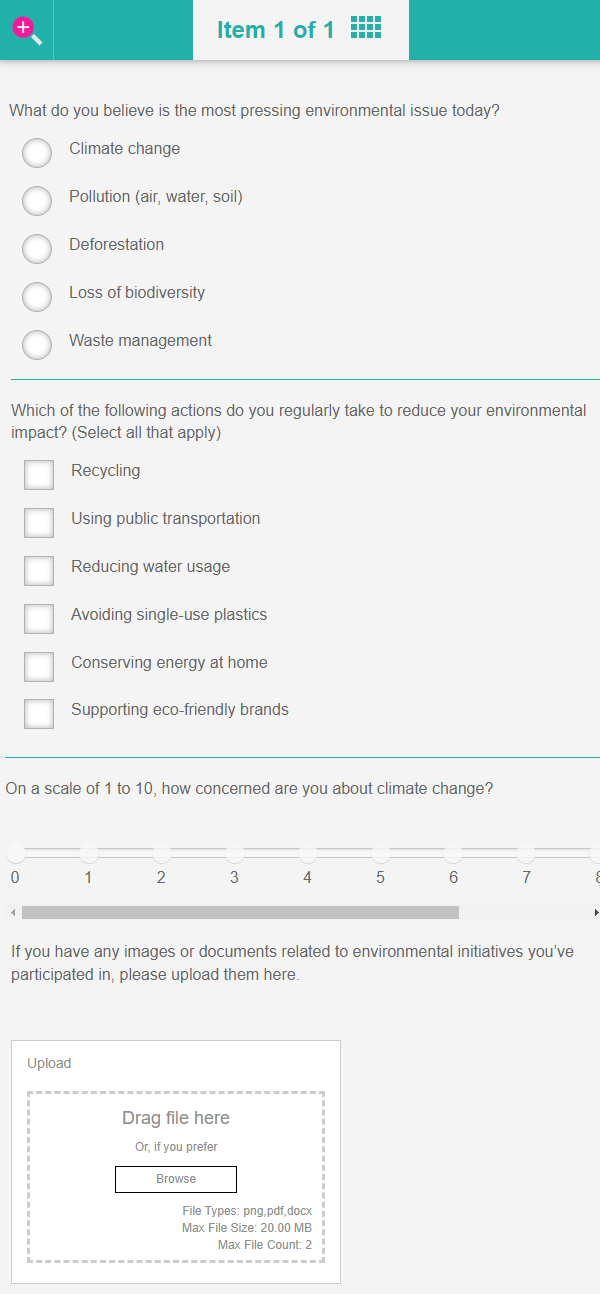
Extended Response — displays single items across two screens: stimulus on the first screen, response area on the second. You'll need a separate Extended Response section for each item to produce this layout.
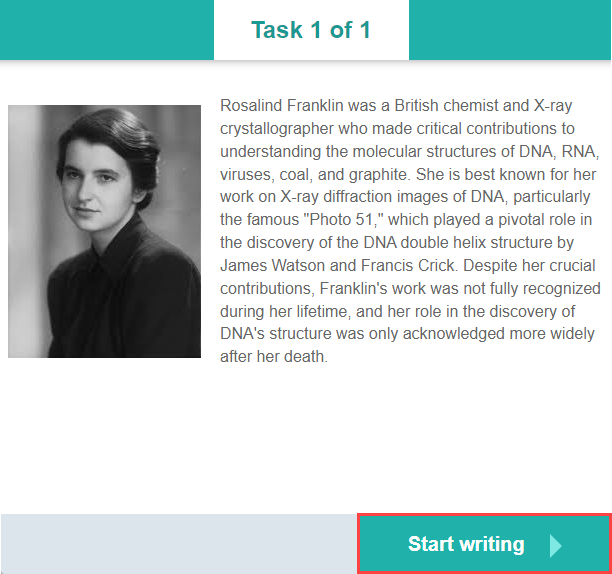
Item Adaptive — a computer-adaptive section. Instead of a fixed set of items, it draws from an item bank and presents items one at a time, choosing each item from the test-taker's performance so far. It's only available in the computer-adaptive test types, and it behaves differently enough from the other section types that it has its own section below — see Item adaptive sections.
There are 3 exit section types.
Exit — displays custom text on the finish screen.
Exit if passed and Exit if failed — the two exit types available to an automatically marked test, which can't use plain Exit. They display custom text the same way.
Important
Exit sections aren't what shows test-takers their results. When a test has a results summary format set, the player goes straight to the results screen and never reaches the exit sections. See end-of-test feedback.
The section types available in the Type dropdown depend on your tenant's configuration. Administrators control this with the Available Test Section Types setting, so some specialised types appear only when they are enabled — see Settings below.
Create a test section
From the Author menu
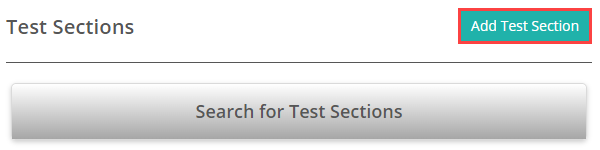
Navigate to Author > Test Sections.
Select Add Test Section.
Complete the form, selecting the appropriate section type from the Type dropdown.
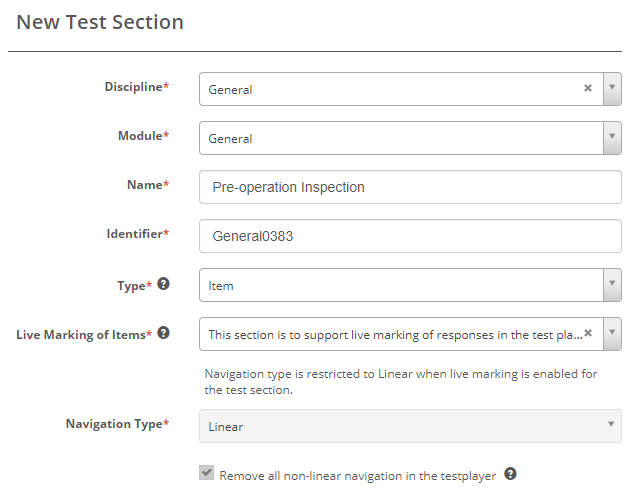
Set Live Marking of Items as required, then select Save.
Retry Marked Item vs. test attempts
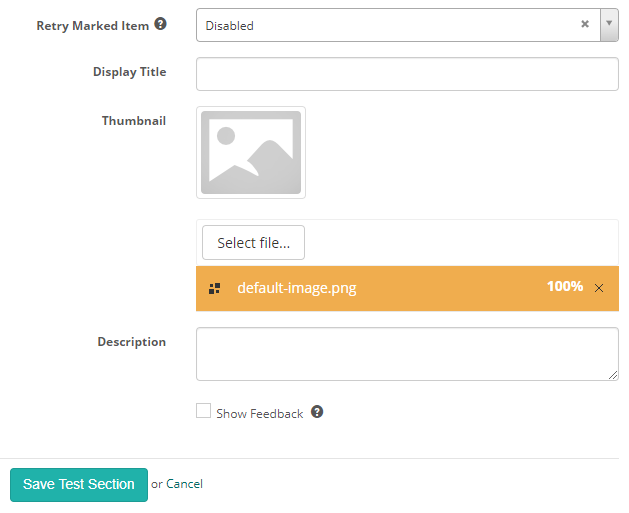
When a section uses scoring support, the Retry Marked Item setting controls whether a test-taker can re-answer an auto-marked item during the same sitting. The options are:
- Disabled — no retry.
- Always show Retry button — a Retry button appears after every answer.
- Show Retry button when answered incorrectly — a Retry button appears only when the answer is wrong, so the test-taker can choose to have another go on the spot.
- Force Retry button when answered incorrectly — the test-taker must keep retrying until the answer is correct before moving on.
This works within a single sitting and is separate from the test-level Number of attempts allowed (see Resit settings). Retrying an item does not use up a test attempt. So if the test allows 3 attempts, a test-taker can retry individual items as permitted during attempt 1, and still have attempts 2 and 3 available for the whole test.
Retry options currently apply to multiple-choice items.
Within a test
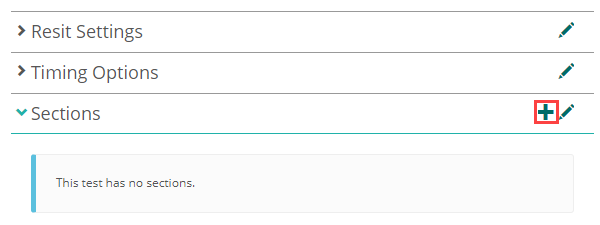
Select the + icon from the test's Sections expandable, then complete the section form.
Add sections and items to a test
Add an existing section to a test
Open the test and select the pencil icon on the Sections expandable.
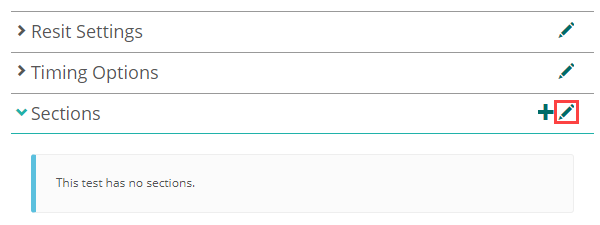
Search for the section, then select + to add it to the test.
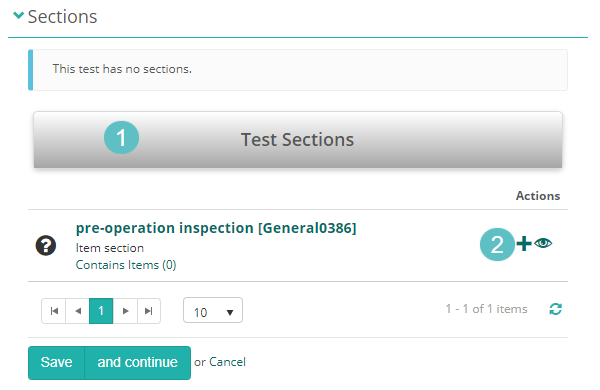
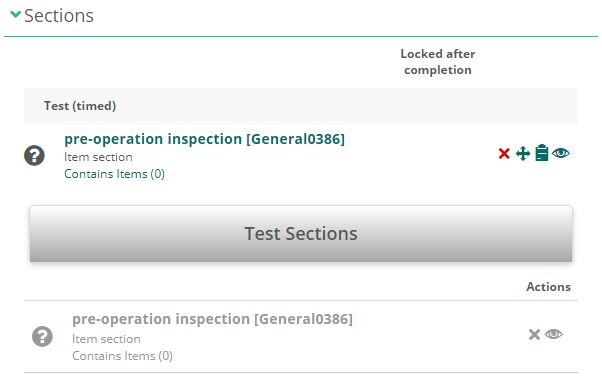
Add items to a section
Items can be created and managed at Author > Items.
Select Add Test Item to create a new item.
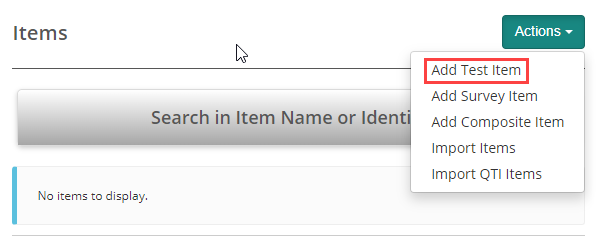
To link items to a section, open the section and expand Questions.
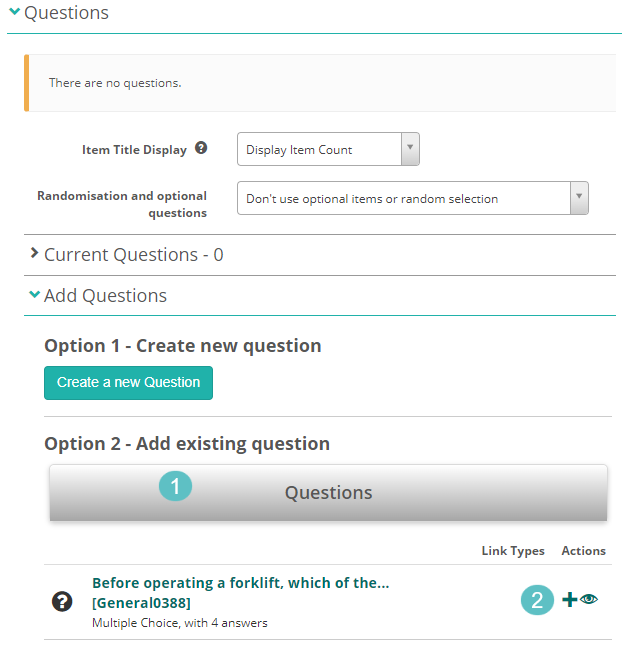
Search for items or create new ones, then select + to add them to the section.
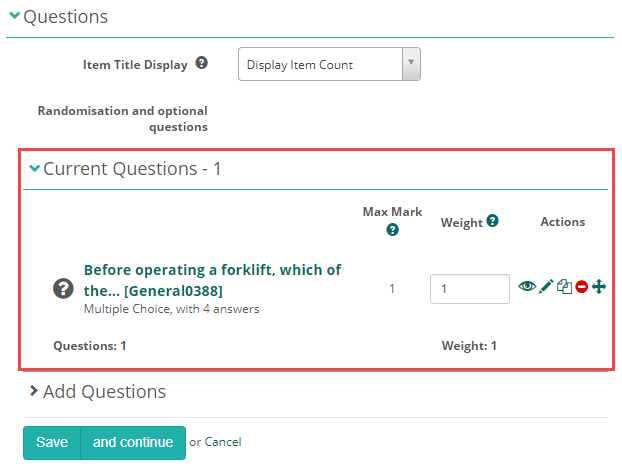
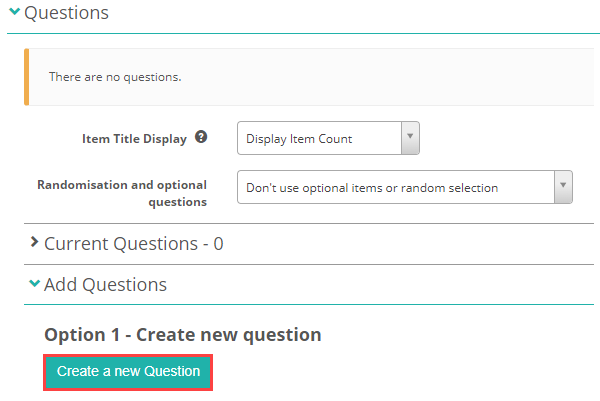
An Item Adaptive section uses a different picker — see Add items to the section.
Item adaptive sections
An Item Adaptive section doesn't hold a fixed, ordered set of items. It holds an item bank, and at delivery it presents items one at a time, choosing each one against the test-taker's performance so far and stopping once it has a precise enough estimate of their ability. What it produces is an ability estimate — theta — rather than a points total, which is why an Item Adaptive section has no Min Points or Points value. For what theta is and how it differs from a score, see What theta is.
Item Adaptive sections belong to the two computer-adaptive test types, Item adaptive test and Branching with item adaptive sections. Inside either of those it's the only type the Type dropdown offers — you can't add an Introduction, Item or Exit section to a computer-adaptive test. Inside every other test type it's filtered out.
Author > Test Sections > Add Test Section is the exception. It has no test in context, so Item Adaptive appears there alongside every other enabled type. A section created that way can still only be added to a computer-adaptive test, so it's usually simpler to create it from inside the test.
Two fields on the test, not the section, govern how the estimate is calculated across the whole attempt: Ability Estimation Method picks the statistical method, and the test's own Confidence Level classifies the finished attempt. Both are described under If your test uses item adaptive sections.
An administrator has to enable both the section type and the test type before any of this is available — see Settings.
Create an item adaptive section
Create the section as you would any other, selecting Item Adaptive from the Type dropdown. Choosing it changes the rest of the form:
- Navigation Type is set to Linear and Remove all non-linear navigation in the testplayer is ticked, both automatically. Test-takers work forwards one item at a time and can't go back — the section has to see each answer before it can choose the next item.
- Live Marking of Items, Retry Marked Item and the item-skip option disappear. Items in an adaptive section are always marked automatically.
- Two groups of required fields appear, Exit Conditions and Starting Ability Estimate (Theta).
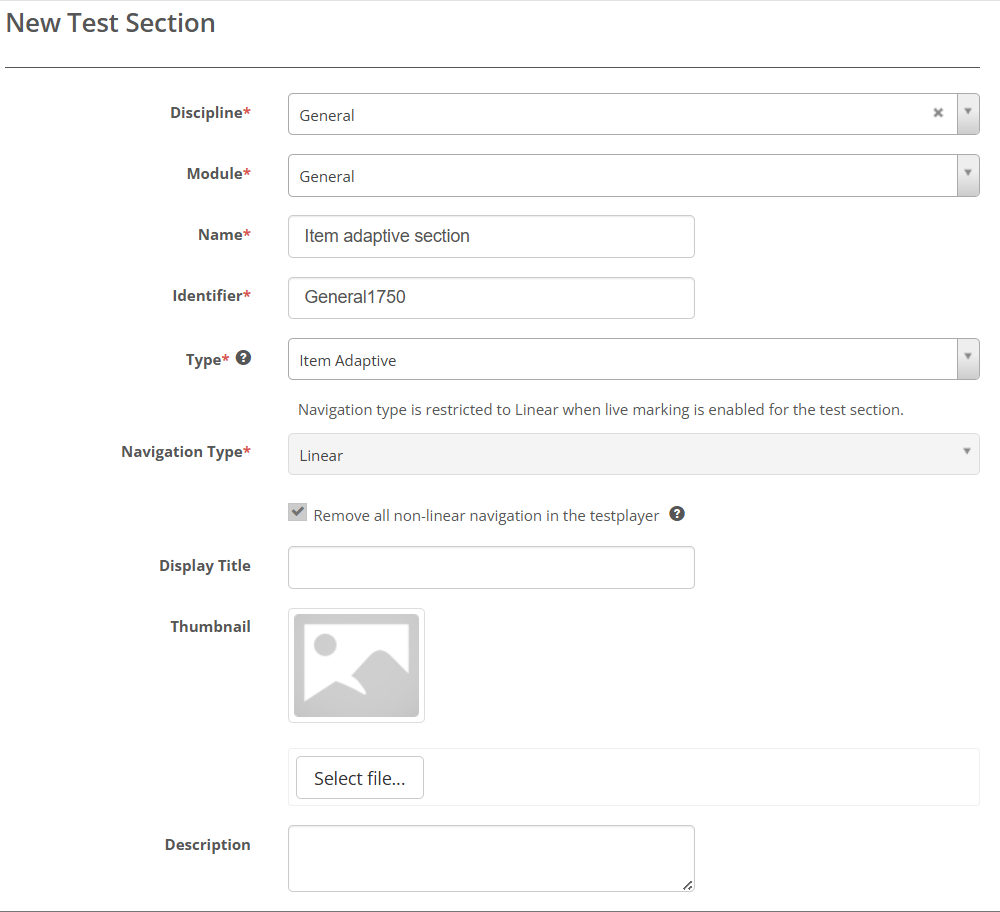
Note
A message appears above Navigation Type reading Navigation type is restricted to Linear when live marking is enabled for the test section. Live marking isn't the reason here — it isn't even available on an Item Adaptive section. The platform shows one message for both cases that lock navigation, and only its wording mentions live marking. On this section type, the lock comes from the type itself.
Under Exit Conditions:
Min Number of Questions — the fewest items a test-taker must answer before the section can end. Enter a whole number; the field's guidance is to use 10 or more, and no more than Max Number of Questions.
Apply minimum questions as a hard exit condition — makes that minimum binding. Left unticked, the minimum is advisory: the section can still end below it once the confidence level is reached, or when no item is left within tolerance.
Max Number of Questions — the most items a test-taker will be presented. The section ends here whether or not the confidence level has been reached. Set it at or above Min Number of Questions.
Important
Nothing validates these two against each other, or against the size of the item bank. Only a Branching with item adaptive sections test checks the bank, and only when the hard exit condition is ticked — it errors if the section holds fewer items than the minimum. In a plain Item adaptive test a bank smaller than the minimum simply runs out, so count the items in the section yourself.
Tolerance/Threshold Level — how far an item's Difficulty may sit from the current ability estimate. Once the best remaining item falls outside this range, the section stops. The field's help text describes this as the change in difficulty between consecutive items, but at delivery it's measured against the current estimate, not against the previous item.
Confidence Level — how confident the platform must be in its ability estimate before the section can end. After each answer it recalculates the estimate and a confidence value for it, and the section is free to end as soon as that value passes what you set here. Set it to 0 and the check never runs, so the section always runs to Max Number of Questions.
Important
The section's Confidence Level and the test's Confidence Level share a label but do different jobs. The one on the section decides when the section stops presenting items. The one on the test is a value between 0 and 1 that classifies a finished attempt as high or low confidence — it doesn't stop anything.
Under Starting Ability Estimate (Theta):
Starting Theta Lower Bound — the bottom of the ability range used to choose the first item, in logits. Enter a value between -4 and 0, where 0 is average ability and -4 very low. Lower values open with an easier item; -1 suits most assessments.
Starting Theta Upper Bound — the top of that range. Enter a value between 0 and 4, where 4 is very high ability. Must be greater than or equal to Starting Theta Lower Bound.
The range isn't a filter on which items can appear. Each attempt draws a random starting estimate from inside it, and the first item is whichever one sits closest to that value. Set both bounds to the same number to start every test-taker from the same point.
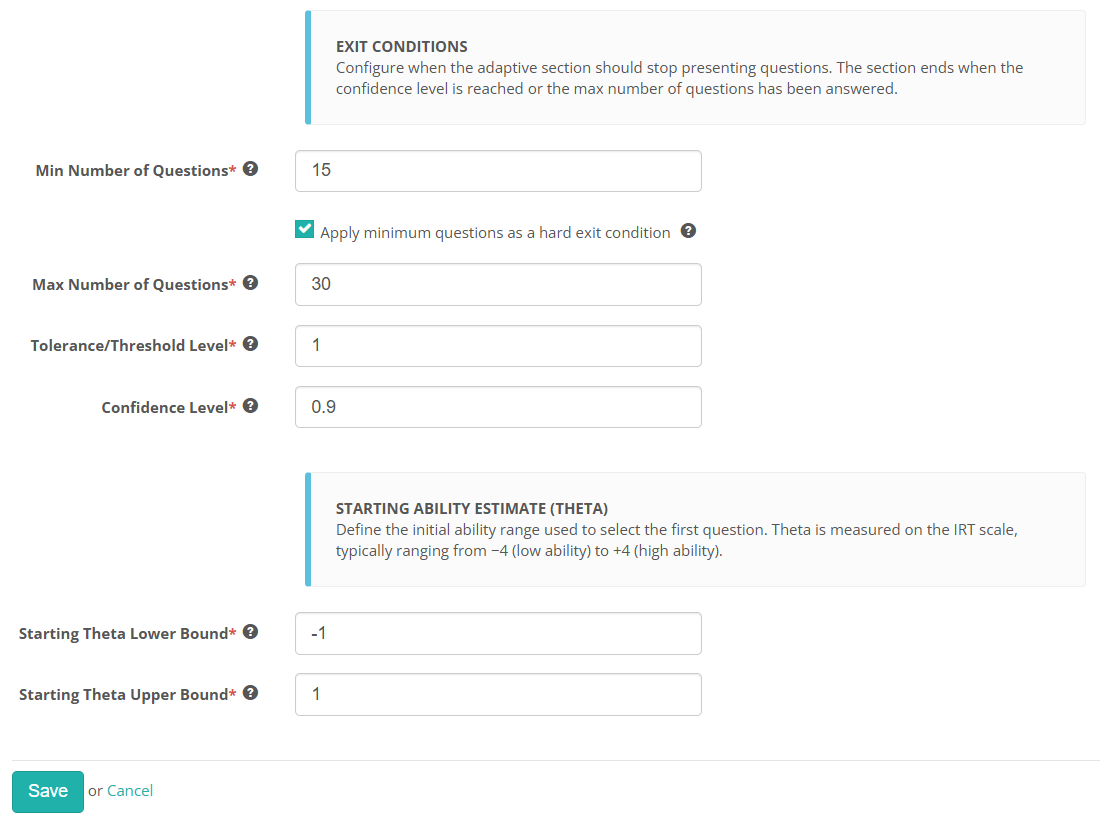
Read the example above as a whole and it describes one adaptive section. Every test-taker answers at least 15 items, because the minimum is enforced. From item 15 on, the section ends as soon as the estimate reaches 0.9 confidence, or when no remaining item's Difficulty sits within 1 logit of the estimate — and at 30 items regardless. Each attempt opens somewhere between -1 and 1, so test-takers don't all start on the same item.
Add items to the section
Open the section and expand Questions. Instead of the search-and-+ flow the other section types use, you get a grid of the items available in the section's module, with a Difficulty column and filters for Difficulty and Status.
Tick the items you want and select Add, or select Add all to take everything the current search returns. Remove and Remove all work the same way in reverse. A running Items count above the grid shows how many the section holds.
Every item in the bank needs a Difficulty value — it's what the section selects against, and what the ability estimate is weighted by. Nothing stops you saving an item without one, and nothing reports the omission, so check the Difficulty column before you deliver.
You set it on the item itself, not on the section or the test. It carries no required-field asterisk, which is what makes it easy to pass over.
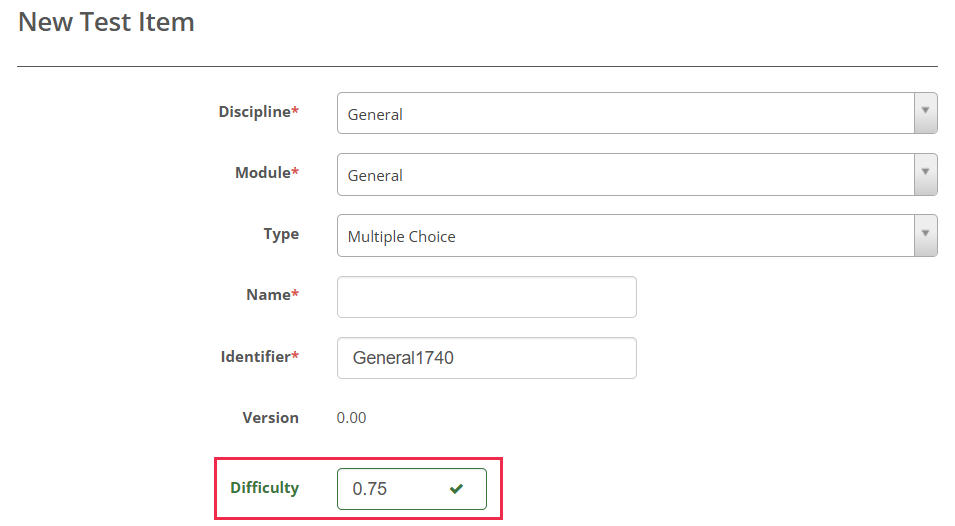
A blank Difficulty doesn't fail. It means two different things depending on where you meet it, which is what makes it easy to miss:
At delivery a blank becomes 0 — read as exactly average ability. The item is then a strong candidate whenever the running estimate sits near zero, which includes the start of most attempts, and it feeds the estimate as though average difficulty were its real value.
In validation a blank counts as nothing at all. The difficulty checks in a Branching with item adaptive sections test work from the highest and lowest Difficulty in the section, and blanks drop out of that calculation rather than counting as 0. Leave every item blank and there's nothing to check against, so the checks pass without reporting anything. Leave only some blank and the checks still run, but against a narrower range than the section can actually produce — a rule bound that's genuinely reachable can be reported as out of range. See What differs from a standard branching test.
Only the delivery reading reaches test-takers.
How the section ends
The section stops presenting items at the first of these:
- The test-taker has answered as many items as Max Number of Questions allows.
- The confidence level has been reached — and, with Apply minimum questions as a hard exit condition ticked, Min Number of Questions has been met as well.
- The bank has run out of items to present.
- The best remaining item's Difficulty sits further from the current ability estimate than Tolerance/Threshold Level allows. With the hard exit condition ticked, this check is suspended until the minimum is met.
Settings
Administrators configure the settings that affect test sections at Settings > Test Designer Settings. The most relevant options are:
Available Test Section Types — controls which section types appear in the Type dropdown when you create a section. Some specialised types are hidden by default; tick the ones your tests need here. Item Adaptive is one of them, and it can't be enabled from inside a test — only from here.
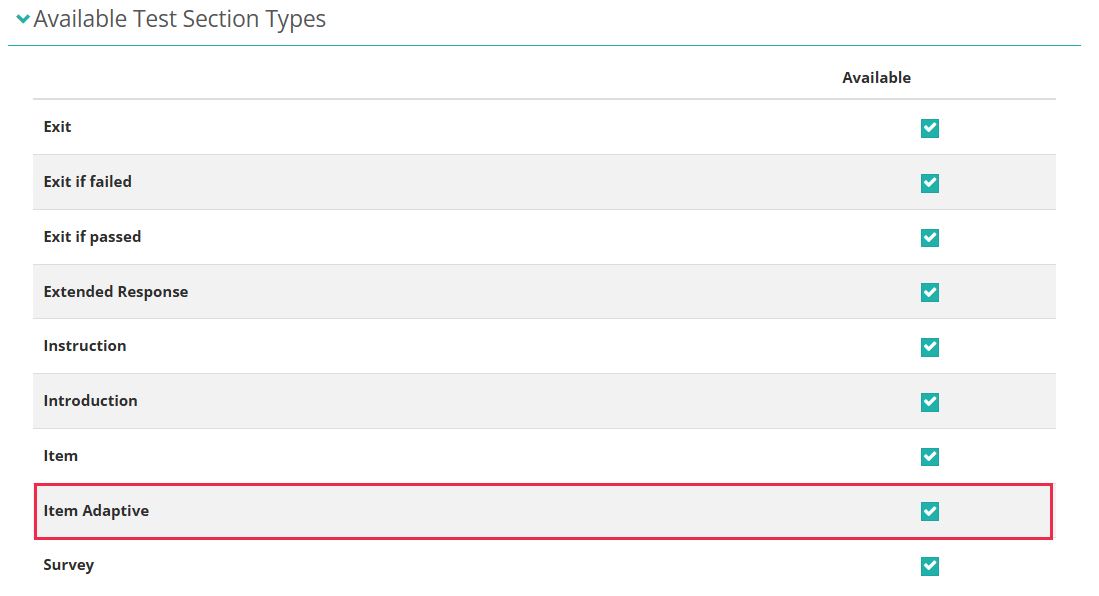
Available Test Types — determines which test types authors can create, including the two computer-adaptive types that make Item Adaptive sections usable: Item adaptive test and Branching with item adaptive sections.
Important
Both lists only offer what's enabled for your platform. If Item Adaptive or a computer-adaptive test type isn't listed, an administrator can't switch it on from your site's settings — contact Janison to have it enabled.
The remaining options sit under Test Section Options:
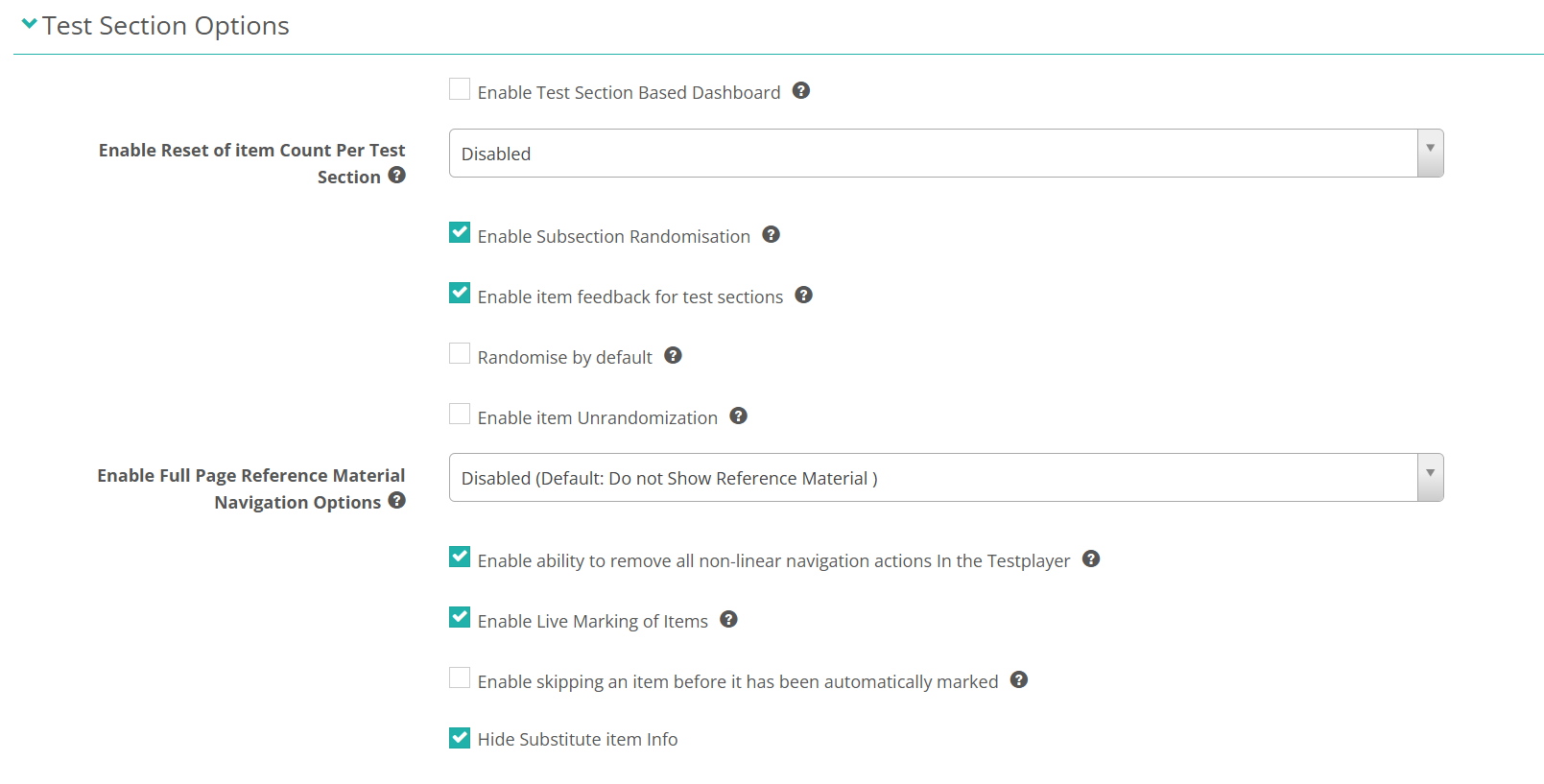
Enable Live Marking of Items — surfaces the per-section Live Marking of Items field, which lets a section mark items in the test player on submission. Turning it on also makes the Retry Marked Item and item-skip options available on the section form. It has one prerequisite: Enable ability to remove all non-linear navigation actions In the Testplayer must be turned on first.
Enable item feedback for test sections — makes the section-level item feedback option available.
Enable Subsection Randomisation — allows the items within a section to be randomised.