Comments
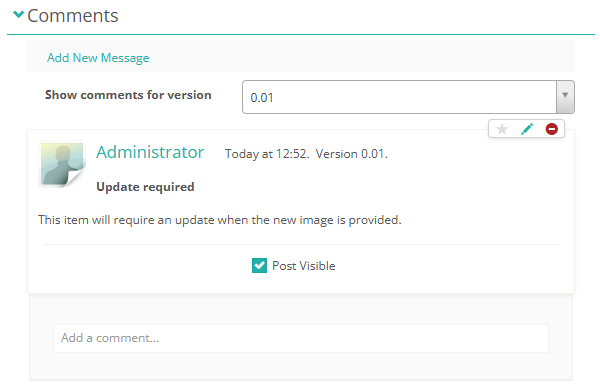
The Comments section on an item lets everyone involved in developing and approving the item hold a discussion. You can post messages, reply to other authors' messages, and attach files.
Add a message
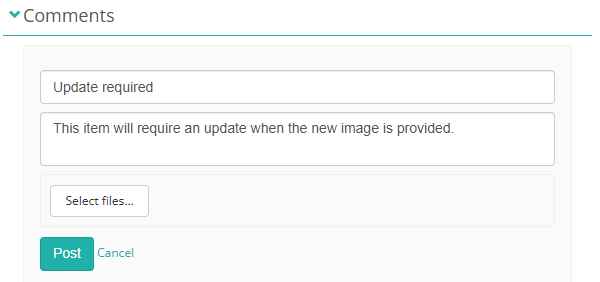
- Open the item and navigate to the Comments section.
- Select Add New Message.
- Enter a subject in the Subject field and your message in the body field.
- To attach a file, use the file upload area.
-
Select Post to submit, or Cancel to discard.
Reply to a message
To reply to an existing message, select the Add a comment area below the message, type your reply, and press Enter.
Manage messages
Depending on your permissions, you can take the following actions on a message:
- Edit — update the subject or body.
- Delete — permanently remove the message.
- Hide — hide the message from other users. Select Show to make it visible again.
- Follow post — select the star icon to receive a notification when others reply to the message.
- Report as inappropriate — flag a message to notify your administrator. This option only appears on other users' messages.
Filter by version
If the item has multiple versions, use the Show comments for version dropdown to display messages for a specific version. Select All to see every message regardless of version.
Settings
Discussion settings are configured at the platform level by your Janison administrator:
- Whether messages that already have replies can be edited.
- Whether messages that already have replies can be deleted.
Contact your Janison administrator if you need to change these settings.