Stimuli
Item authors can use a stimulus to add material or information to a test item, to provide relevant information or context for the test-taker. It can be any form of content, such as a passage of text, a graph, a diagram, an image, an audio clip, or a video segment.
While it is possible to add the same forms of content and resources to the stem of an item, there are benefits to using a stimulus:
- You can reuse a single stimulus across multiple items in the same module.
- You can optimise the design and layout of the item by utilising the blank space at the side of the item. This potentially reduces the scrolling required by the test-taker.
- Test-takers can maximise and minimise the stimulus using the arrow
 on the right edge of the stimulus panel — a particularly valuable feature when the content is long or large.
 - When multiple stimuli are attached to an item, each displays as a separate tab. In the example below, three stimuli — Solar, Wind, and Hydro — are attached to an extended text item, each appearing as a tab.
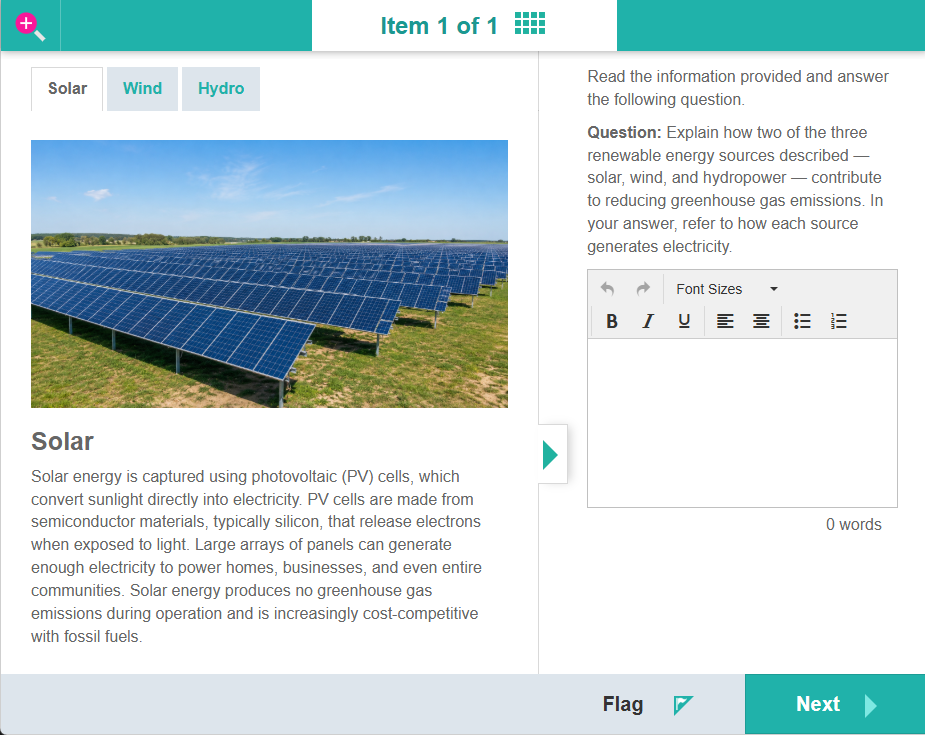
Create a new stimulus
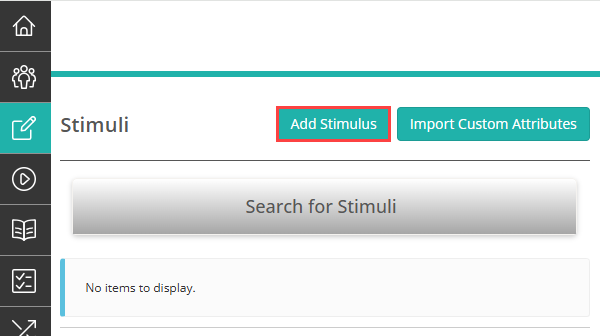
Stimuli are created and managed by selecting Stimuli from the left navigation in the Author area.
Select Add Stimulus.
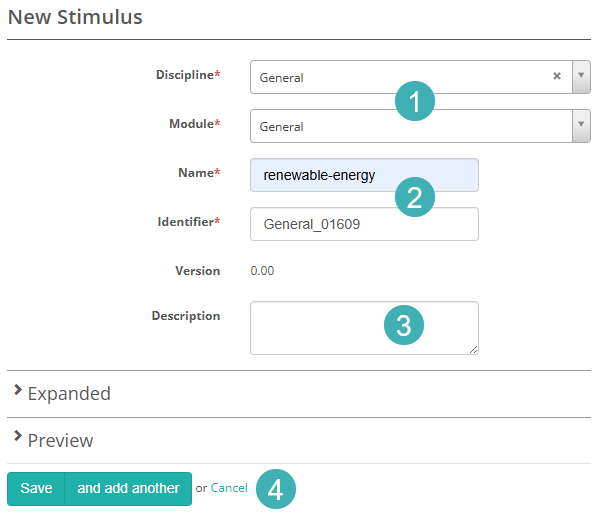
- Select Discipline and Module.
- Enter Name and Identifier.
- Add a description in Description (optional).
-
Select Save.
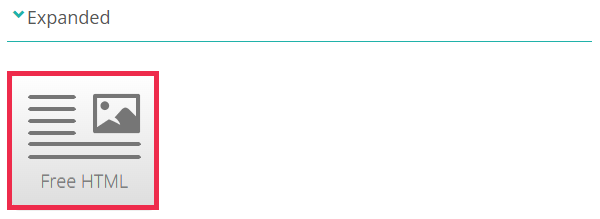
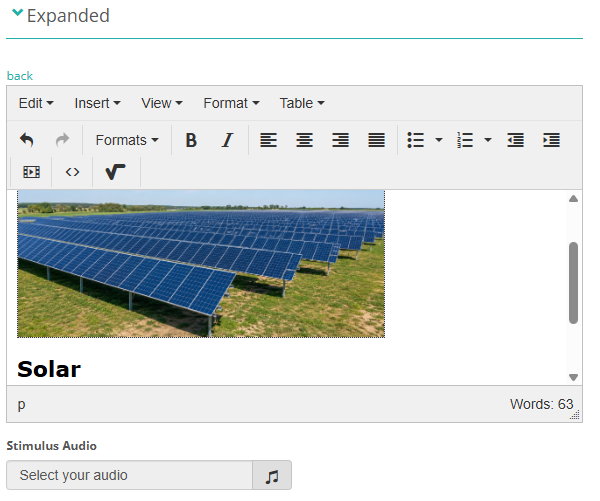
Select the Expanded expandable section, then select Free HTML.
Enter content such as text and media. Add any audio by selecting Stimulus Audio (optional).
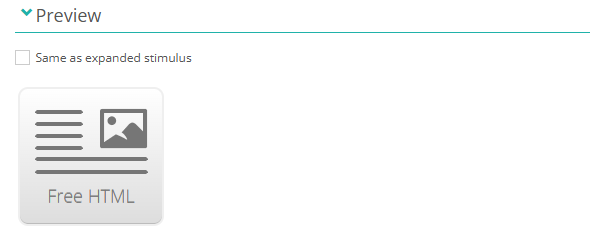
Select the Preview expandable section. This section controls how the stimulus displays when minimised. By default, Same as expanded stimulus is checked — leave this selected to reuse the expanded content. To use different content in the minimised view, uncheck Same as expanded stimulus, then select a template type such as Free HTML.
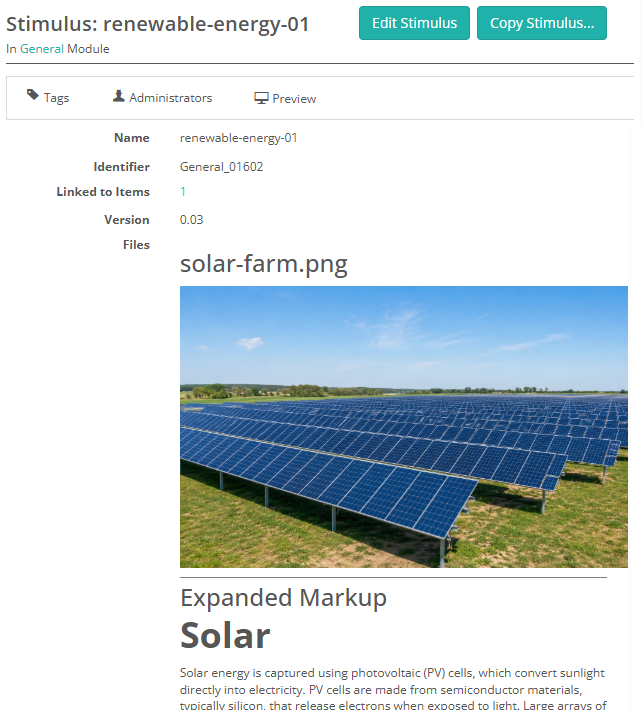
When you save the stimulus, the details you entered are displayed on the stimulus page.
Add a stimulus to an item
You can add a single stimulus or multiple stimuli to an item.
Tip
If you add multiple stimuli, they display as tabbed content in the test player. Test-takers can switch between tabs without scrolling away from the item.
Open an existing item and select the edit icon on the Stimuli expandable section.
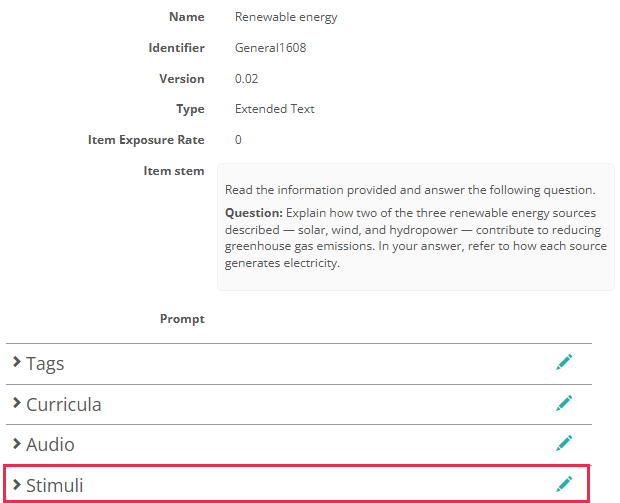
- Select a Stimulus\Item Ratio (optional) to set the percentage of horizontal space the stimulus occupies in the minimised and expanded states.
- Select a stimulus from the Add an existing Stimulus list, then select + to add it. Repeat for each stimulus you want to add.
- Enter a caption in the Caption field (optional). If you do not enter a caption, the stimulus name is used as the tab label.
-
Select Save Stimuli.
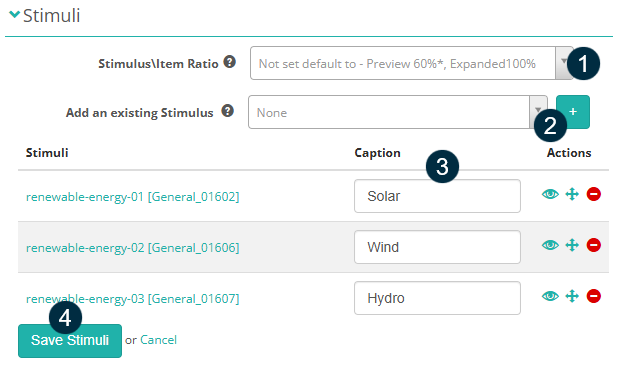
In this example, three stimuli have been added with captions Solar, Wind, and Hydro. In the test player, each stimulus displays as a separate tab.
Settings
Administrators can configure the following settings at Settings > Resource Settings.
Available stimulus templates — controls which template types (Free HTML, Slide Show, Email) authors can choose from when creating or editing a stimulus. Settings are inherited from the global tenant; local tenants can only enable templates that the global tenant has also enabled.
Stimulus identifier autogeneration — when enabled, the system generates stimulus identifiers automatically using a configurable pattern. Enable Auto-generated identifier read-only to prevent authors from editing the generated identifier.
The available Stimulus\Item Ratio options are configured at Settings > Test Designer Settings.