Order Interaction
An order interaction item type requires test-takers to order text or images.
Order interaction item types are a similar concept to graphic order interaction item types, where test-takers drag and drop numbers onto designated hotspots on an image to indicate the correct order.
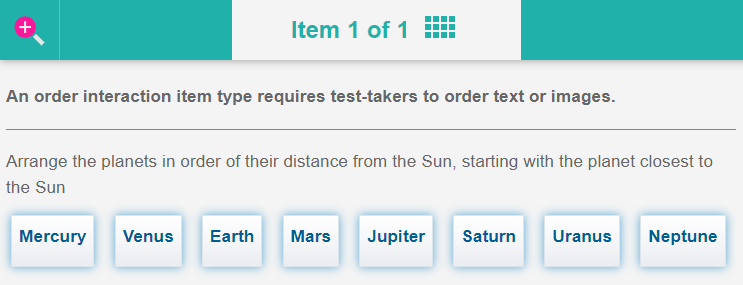
Try this item type in the practice test below. The slideshow further down shows an example of the item type.
Practice test
Open this test in the Janison test player and complete an example of an order interaction item.
Example Slideshow
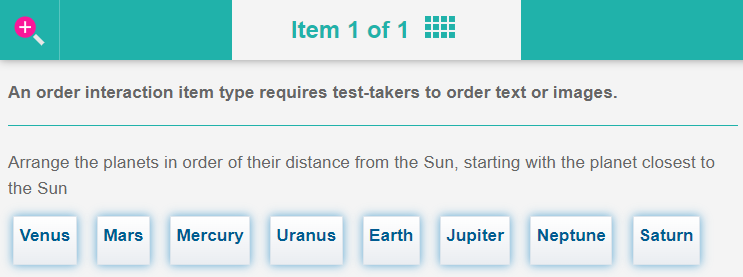
Move to the next slide to see the completed item.
Create an Order Interaction Item
Step 1: Navigate to Items
Navigate to Author > Items.
Step 2: Add Test Item
Select Add Test Item from the Actions drop-down.
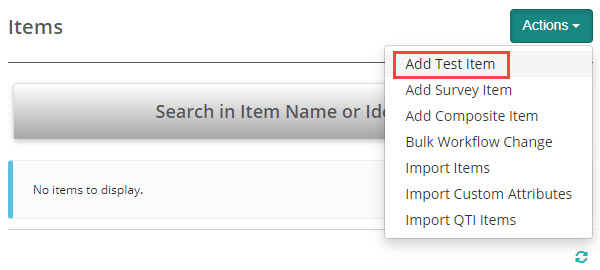
The New Test Item screen displays.
Step 3: Configure Basic Settings
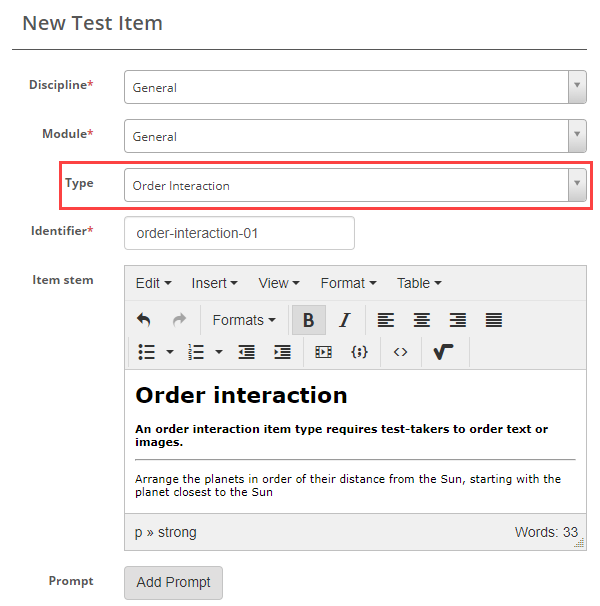
Complete the form as required. Below is an example of a new item we created.
Select Order Interaction as the item type and enter the Item stem.
Step 4: Set Orientation and Scoring Type
In the next section we can set the orientation and scoring type.
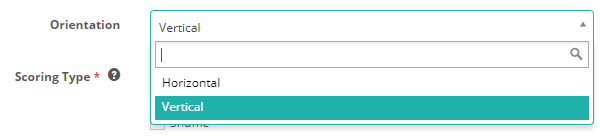
Orientation – The options are Horizontal and Vertical. This will determine if the answers display to the test-taker horizontally or vertically. We have added examples of both these options in the sample test.
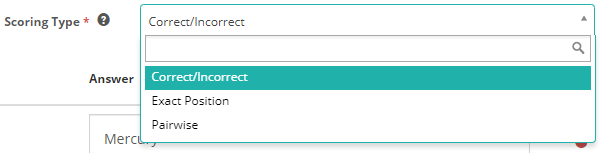
Scoring Type – The options are Correct/Incorrect, Exact Position and Pairwise. See Setting Scores and Marking below to learn more about these options.
Step 5: Enter Answers
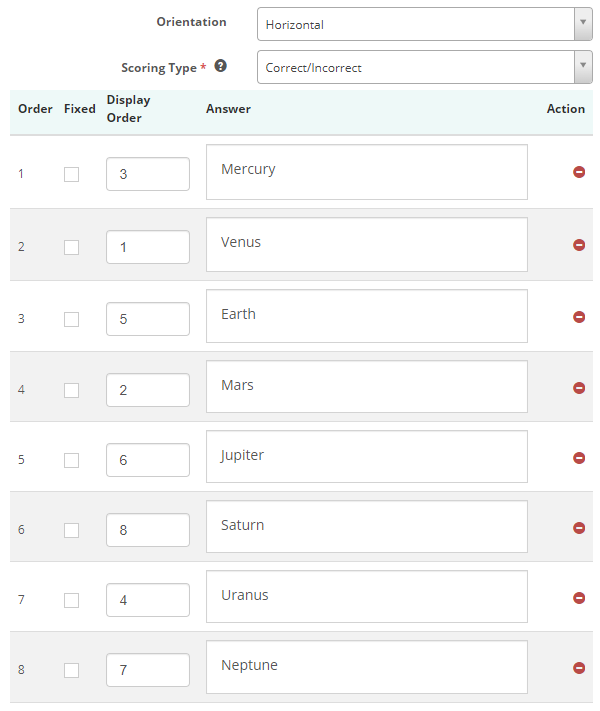
Enter the answers in the correct order in the Answers field. Next, enter the order in which the options should display to the test-takers in the Display Order column. The Order column displays the correct sequence of the answers.
Fixed – Check this box if you want the option to remain fixed and unmovable. You can view an example of this in the practice test at the top.
Step 6: Save Item
The final step is to Save Test Item.
Setting Scores and Marking
Order interaction item types are system marked.
Scoring Type
There are three scoring types available: Correct/Incorrect, Exact Position and Pairwise.
Correct/Incorrect
With this scoring type, the test-taker must select all correct responses to get the item correct.
Exact Position
Exact position scoring assigns a score to each selection made by the test-taker, but only if the selection is made in the correct position.
Pairwise
Pairwise scoring assigns scores to answers based on if the answer precedes the correct answer. For example, the score for the second answer will be awarded if the second answer is placed by the test-taker after the first answer, regardless of the absolute position of the answer.
Additional Scoring Options
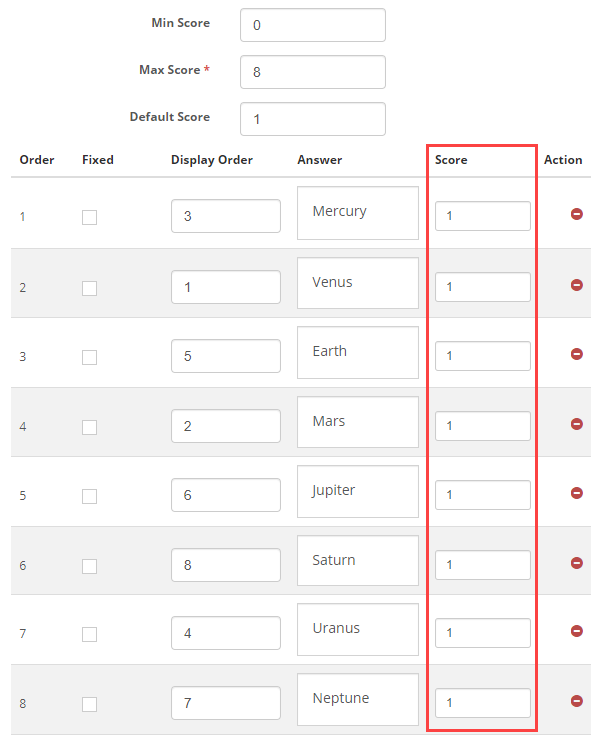
With exact position and pairwise scoring type, additional scoring options will become available to the item author, allowing them to add a score for each response.
Min Score – Setting a value in this field will determine the minimum score that the system can assign to the item.
Max Score – Setting a value in this field will determine the maximum score that the system can assign to the item.
Default Value – The system will use this value if a row doesn't have a value in the Score column.
A scoring section becomes available on the right where item authors can set a score per distractor.