Graphic gap match interaction
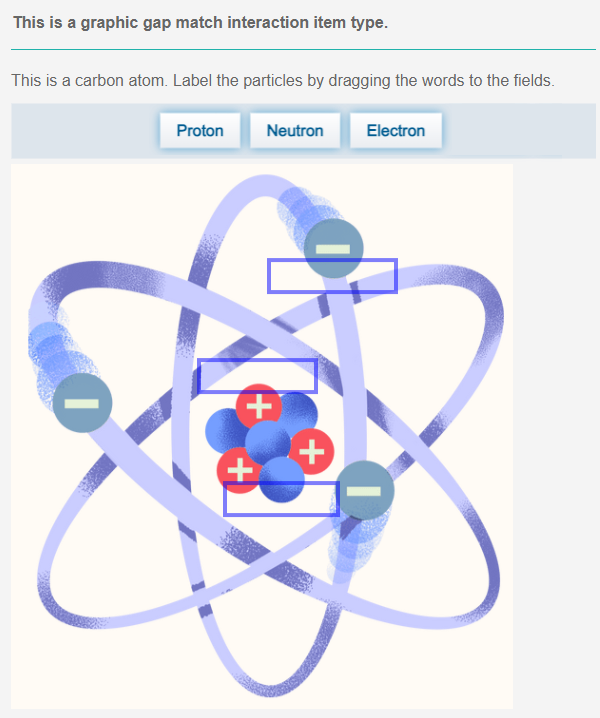
A graphic gap match interaction item is created using an image with a number of defined drop areas (gaps). The test-taker responds to the item by dragging images or text onto the graphic.
Graphic gap match interaction item types are similar to gap match interaction item types where the gaps display in blocks of text instead of on a graphic.
Try this item type in the practice test below.
Practice test
Open this test in the Janison test player and complete an example of a graphic gap match interaction item.
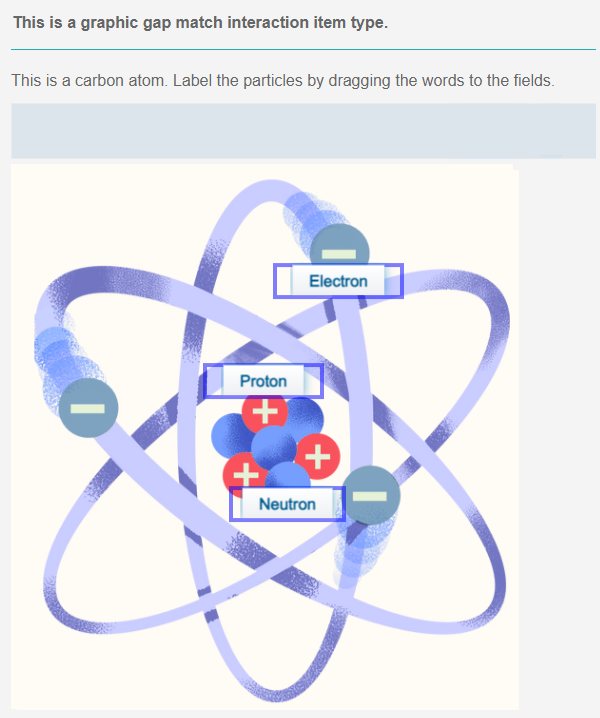
Move to the next slide to see the completed item.
Create a graphic gap match interaction item
Navigate to Author > Items.
Select Add Test Item from the Actions drop-down.
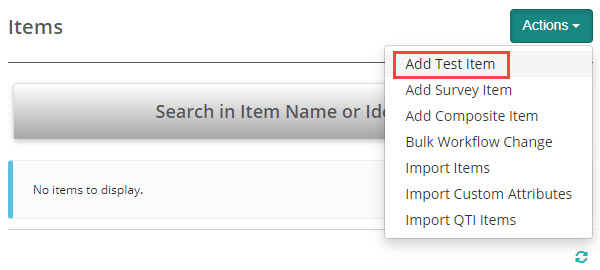
The New Test Item screen displays.
Complete the form as required. Below is an example of a new item we created.
Select Graphic Gap Match interaction as the item Type and enter the Item stem.
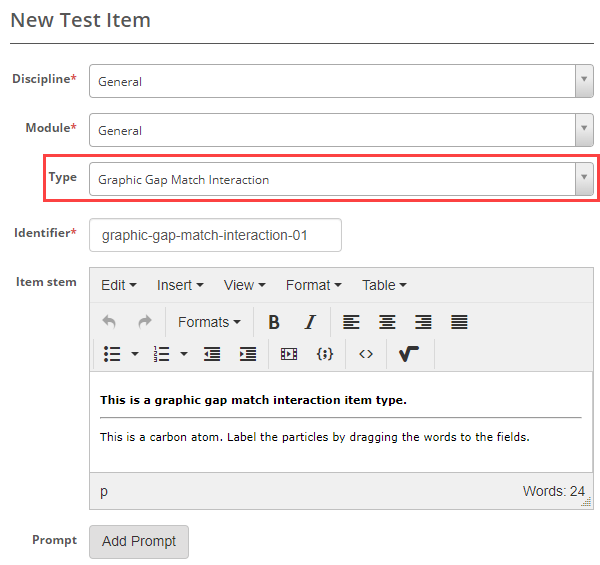
In the next section we can set the orientation and scoring type.
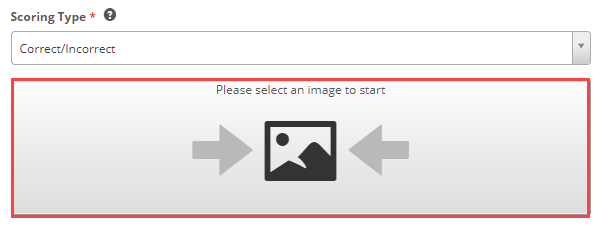
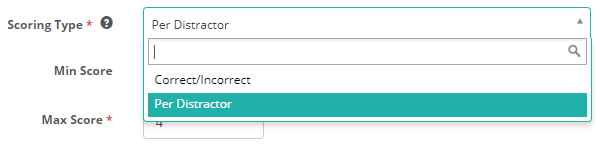
Scoring Type – The options are Correct/Incorrect and Per distractor. See the Setting scores and marking below to learn more about this.
You now have an option to add an Image. Select the image icon.
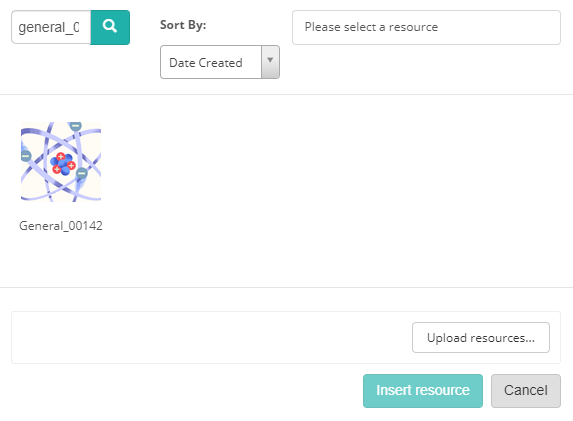
The resources manager displays. You can either select an existing image or upload a new image.
Once the image has uploaded you have an option to upload a new image or to edit the image using the image icon at the top right  .
.
Add drop areas to the image
Using a shape tool, draw shapes around the areas that are to be drop areas (gaps) by clicking and then dragging to the required size.

Once you have placed the shape, you can make adjustments using the fields below. Increasing the Width and Height will increase the size of the shape.
You can move the shape by clicking on it and then dragging. The coordinates in the Top and Left fields will reflect the moves.
In the example below, we have used the rectangle tool and we have clicked into the Neutron hotspot.
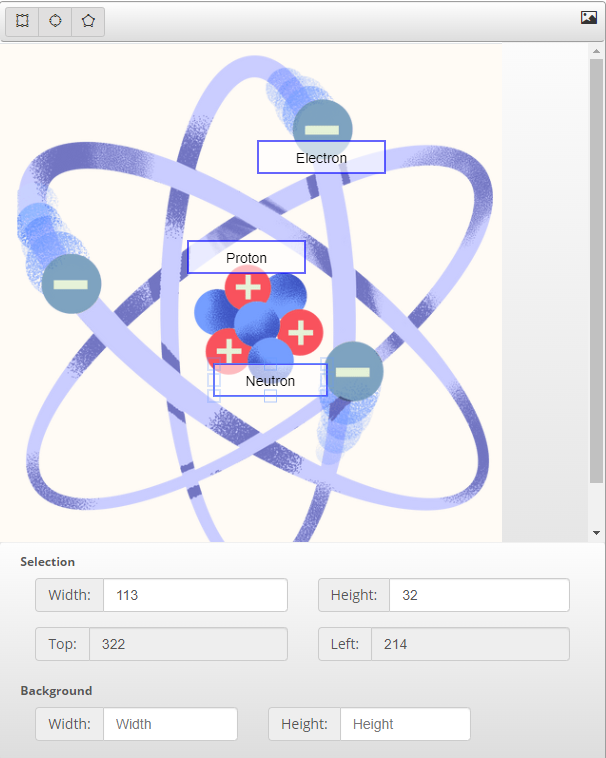
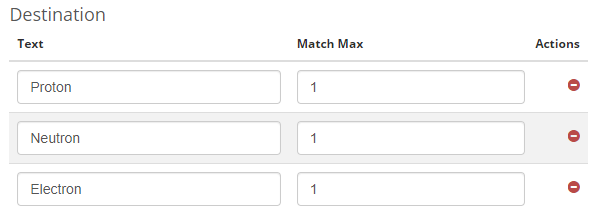
Destination and a Source field displays for each defined drop zone. The destination field refers the drop zones you created on the image using the shapes. The source field refers to the text or images the test-takers drag to the created drop zones.
In the Destination section, identify each of the drop zones by giving them a label in the Text field. This is not displayed to the test-takers.
Enter the maximum number of times each drop zone can be matched in the Match Max fields.
Source
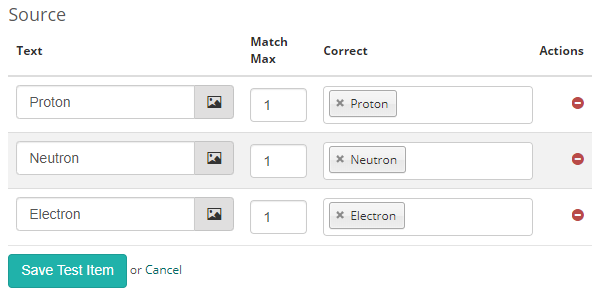
In this section you'll enter the responses.
Text – Enter your text or upload images into the Text fields. You can use the images  icon to load images.
Match Max – Enter the maximum number of matches for each item in the Match Max fields. If you set match max to '1', the test-taker can only drag the text or images from the bay of selections to one drop area below. The text or image will no longer display in the top bay once the match max number is reached. If set to 2, the text or images can be placed twice.
Correct – Select the correct gaps and then Save Test Item.
Setting scores and marking
Graphic associate interaction item types are system marked.
Scoring type
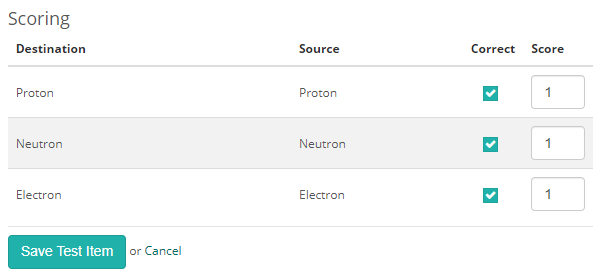
There are two scoring types available, correct/incorrect and per distractor.
Correct/Incorrect
With this scoring type, the test-taker must select all correct responses to get the item correct.
Per distractor
With this scoring type, additional scoring options will become available to the item author, allowing them to add a score for each response.
Min Score – Setting a value in this field will determine the minimum score that the system can assign to the item.
Max Score – Setting a value in this field will determine the maximum score that the system can assign to the item.
Default Value – The system will use this value if a row doesn't have a value in the Score column.
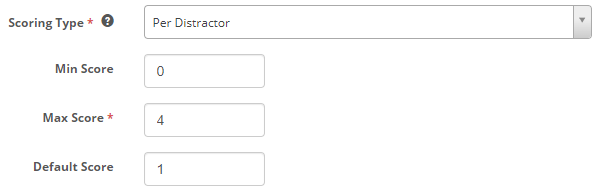
A scoring section becomes available below where item authors can set a score per distractor.